
How do I use Audio Announcements in Mvix CMS?
Audio Announcements allow you to share important, time-sensitive messages through your digital signage. Simply enter your message as text, and it is quickly converted into audio that plays through your screens and connected sound systems.
By combining dynamic on-screen content with attention-grabbing audio, you can deliver information more effectively. Use Audio Announcements to promote products, share updates with employees or students, guide waiting customers, or broadcast critical alerts when it matters most. It is a powerful way to capture attention and ensure your message is seen and heard.
How Markets Can Use Audio Announcements on Digital Signage
- Retail Stores: In-store Promotions and Advertising, Welcome Messages, Important Business Updates, Emergency Alerts
- Corporate Communications: Welcome Messages, Meeting Room Management, Production, and Metric Announcements, Emergency Alerts, Interactive Signage
- Educational Institutions: School Announcements, Emergency Audio Alerts, Cafeteria Specials, Classroom Learning Tool
- Sports Arenas: Game Updates, Menu Specials, Promotional Deals, Emergency Alerts, Advertising, Contest Announcements
What You’ll Need:
- A compatible digital signage player e.g. Mvix, BrightSign, etc.
- Mvix CMS Software with a supported feature package
- Internet Connectivity
- Access to the Audio Announcements App
If you meet the requirements listed above, simply follow the steps below.
Using the Audio Announcements
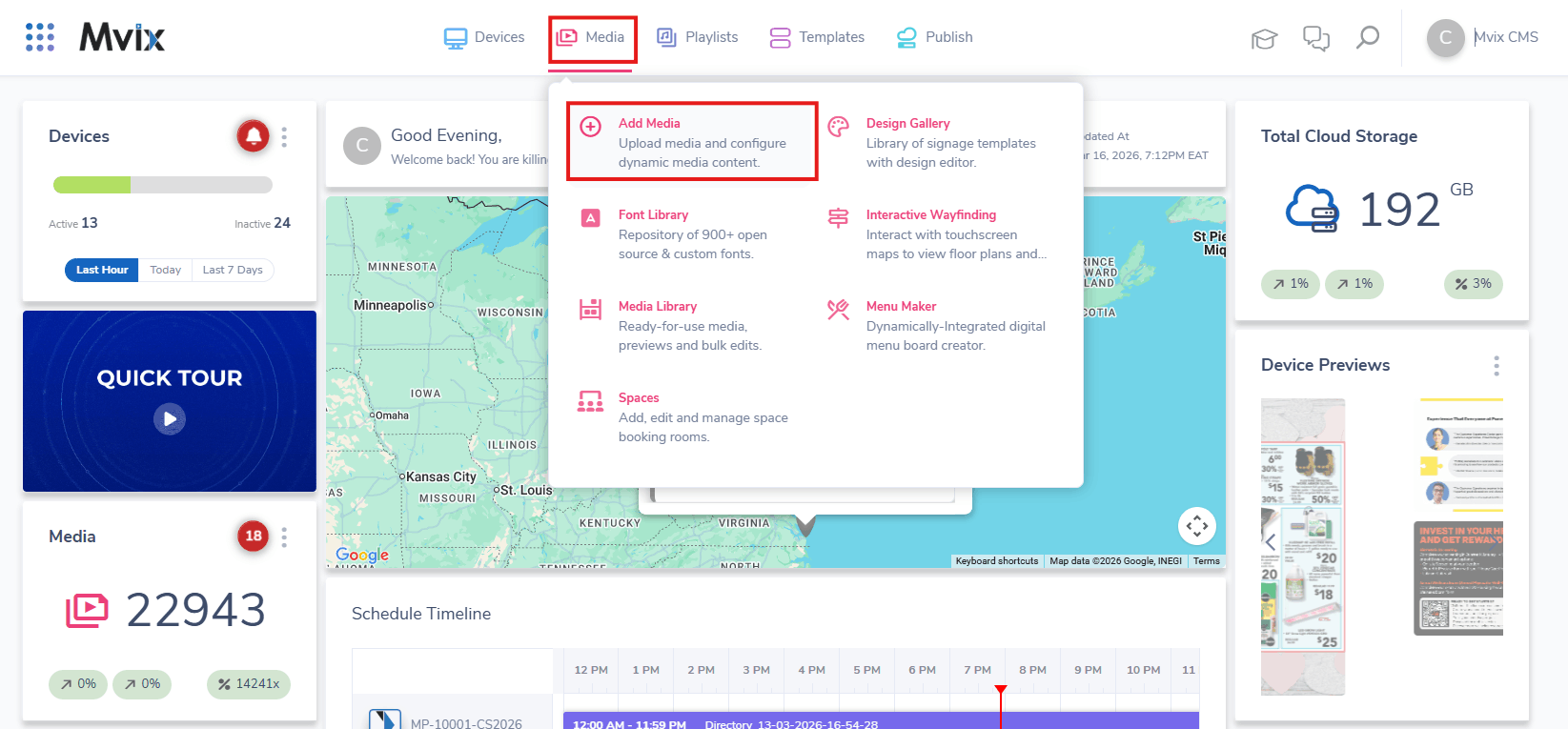
- Next, Hover over the “MEDIA” tab and click “ADD MEDIA”.
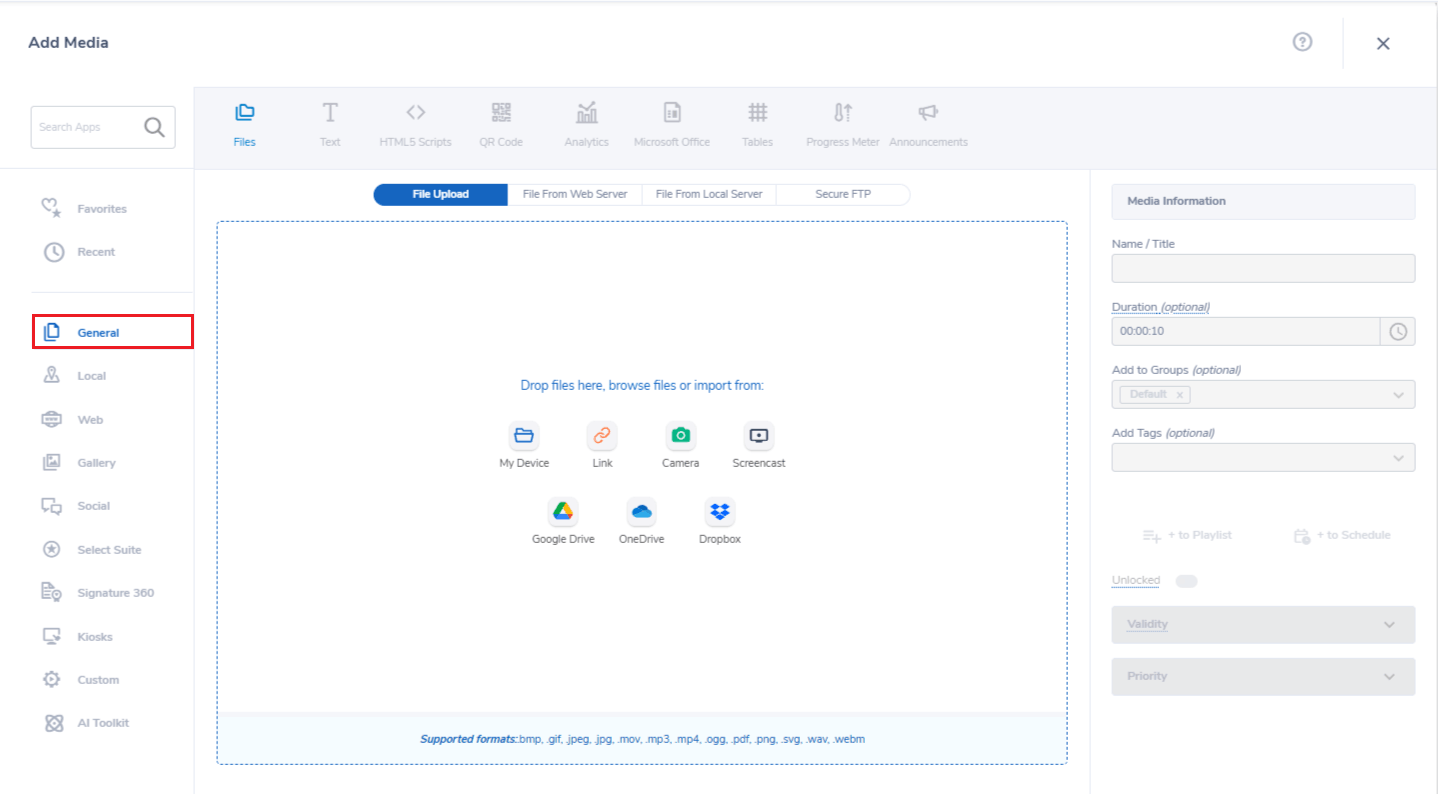
- Click on the “GENERAL” category.
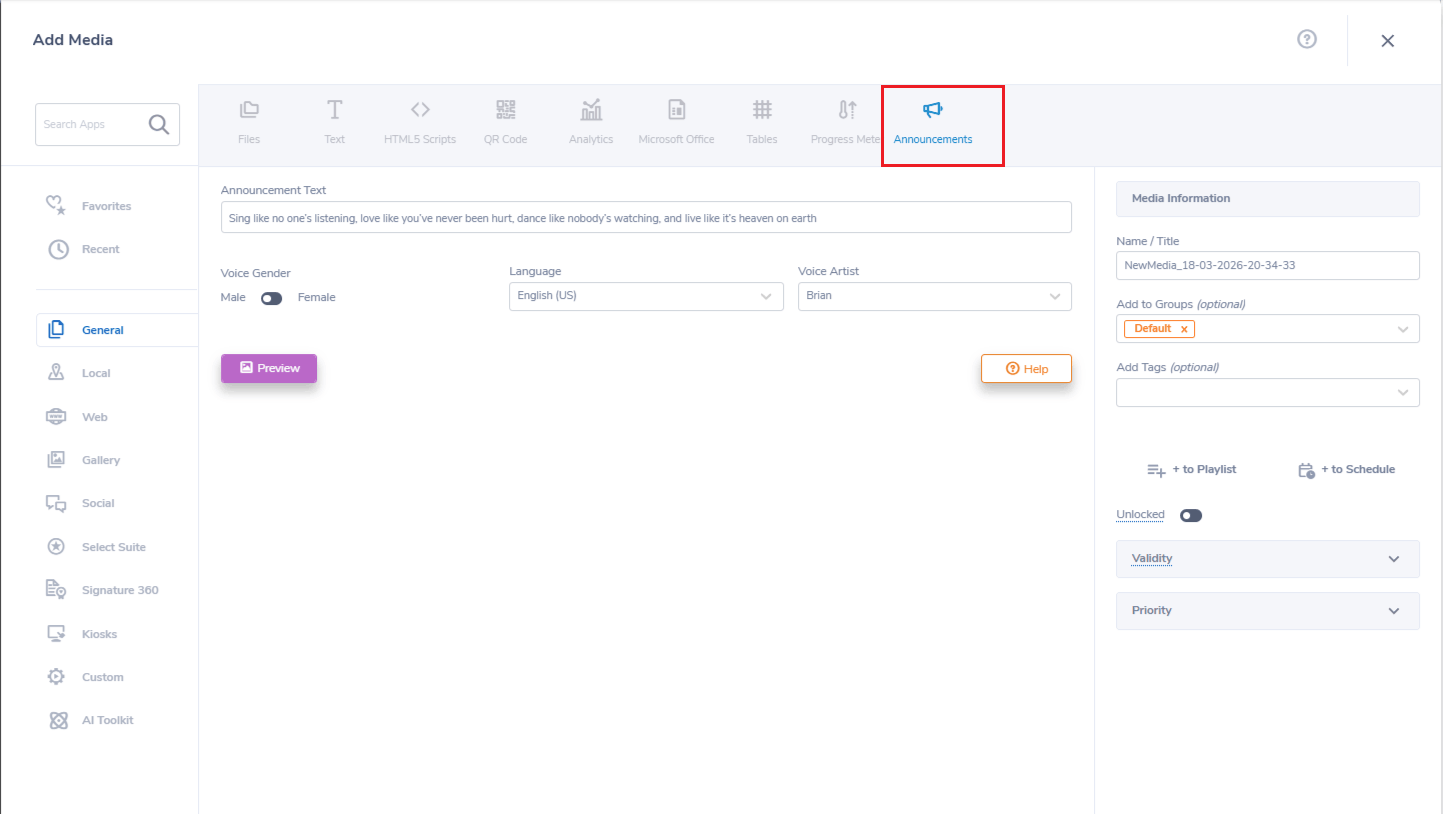
- Select “Audio Announcements”.
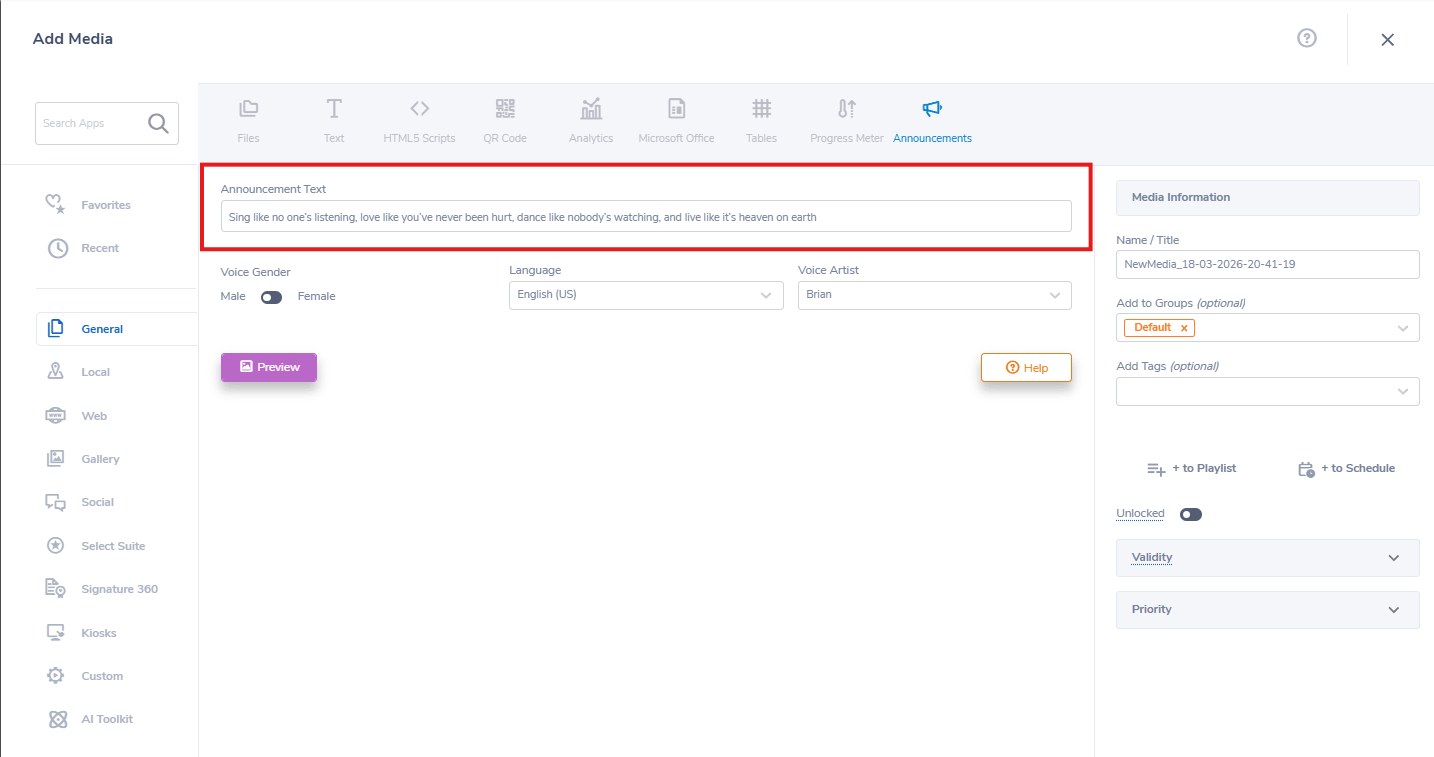
- Add a text to the Announcement Text section.
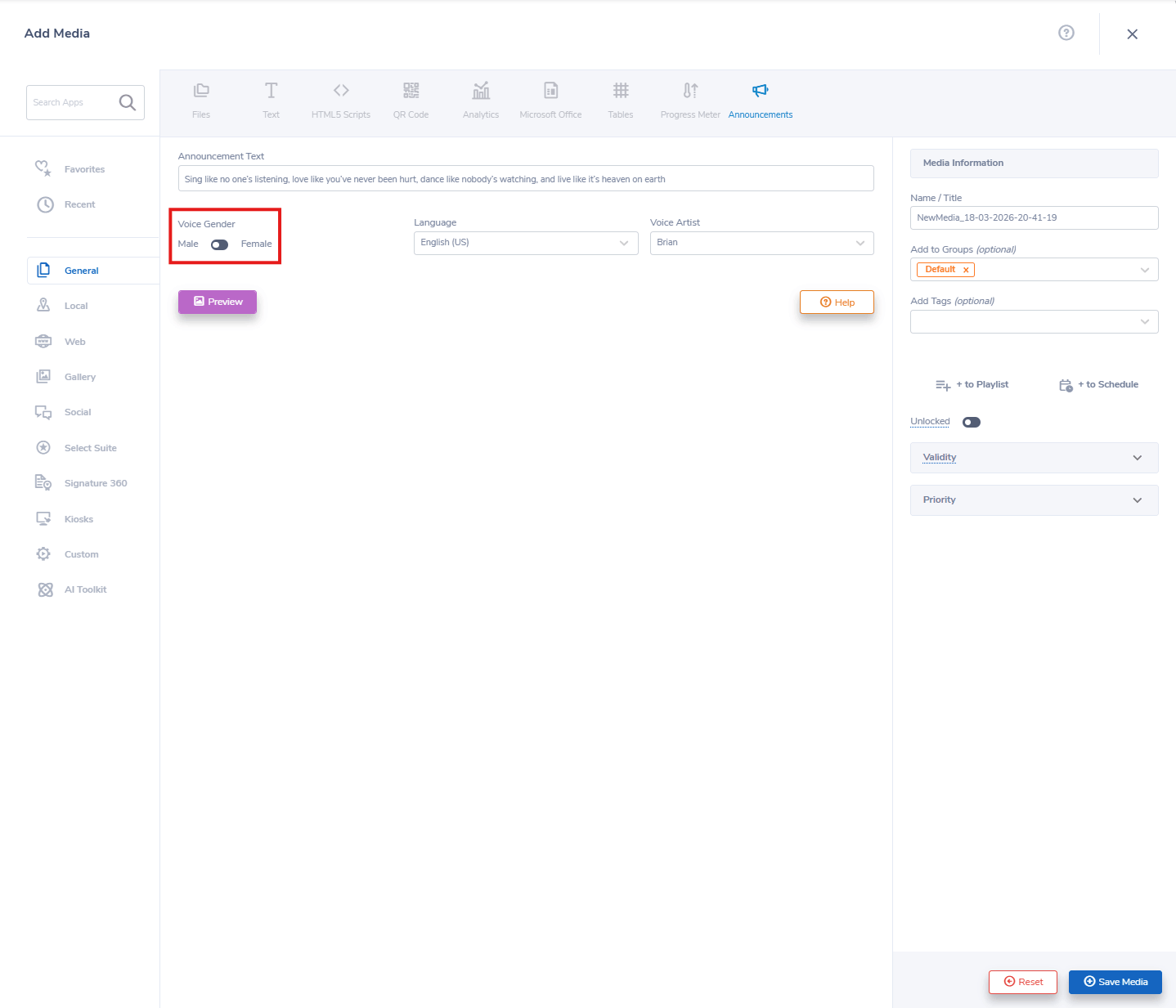
- Select a Voice Gender.
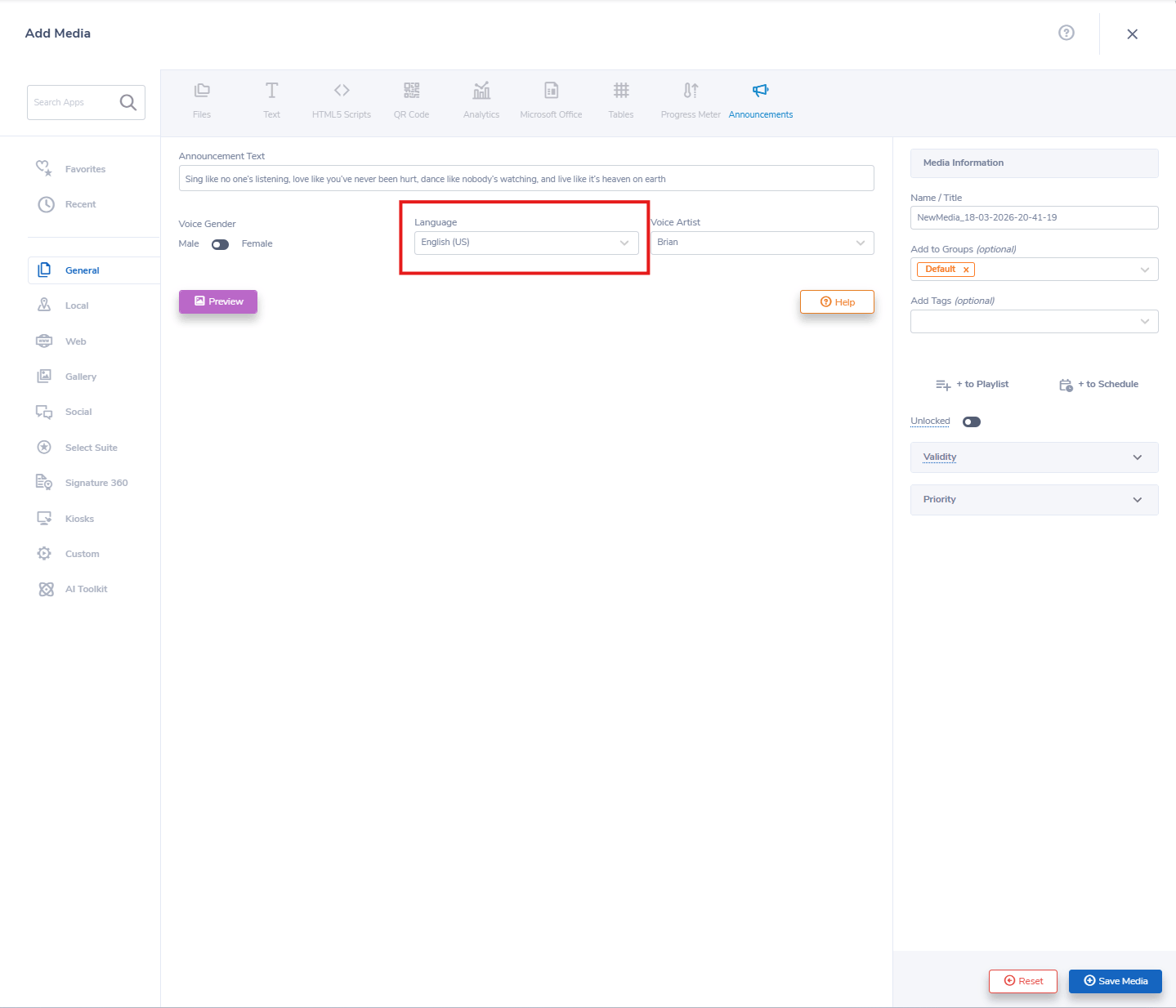
- Click on “LANGUAGE” to select your language.
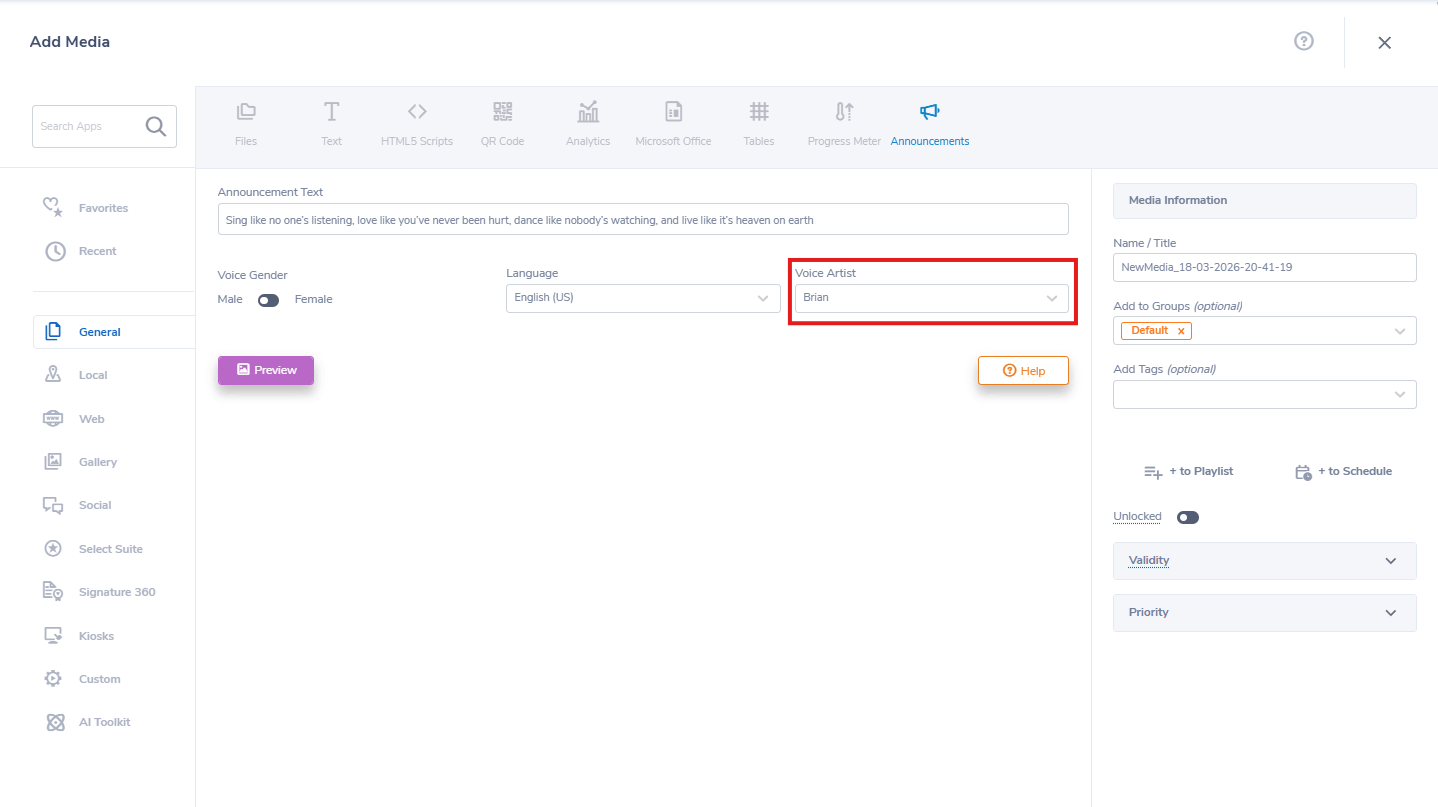
- After that, select Voice Artist to choose your preferred voice and click “Preview”.
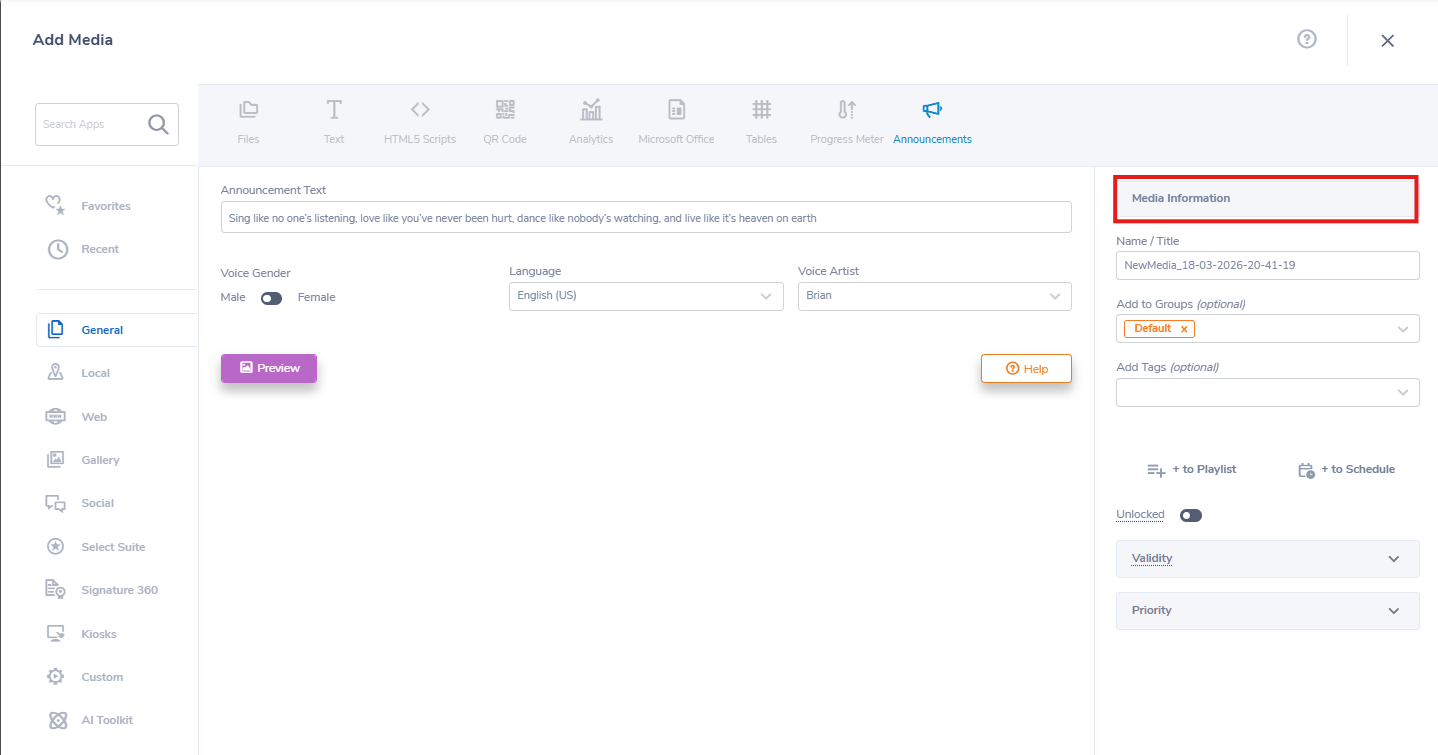
- Add a name to the announcement in the Media Information section.
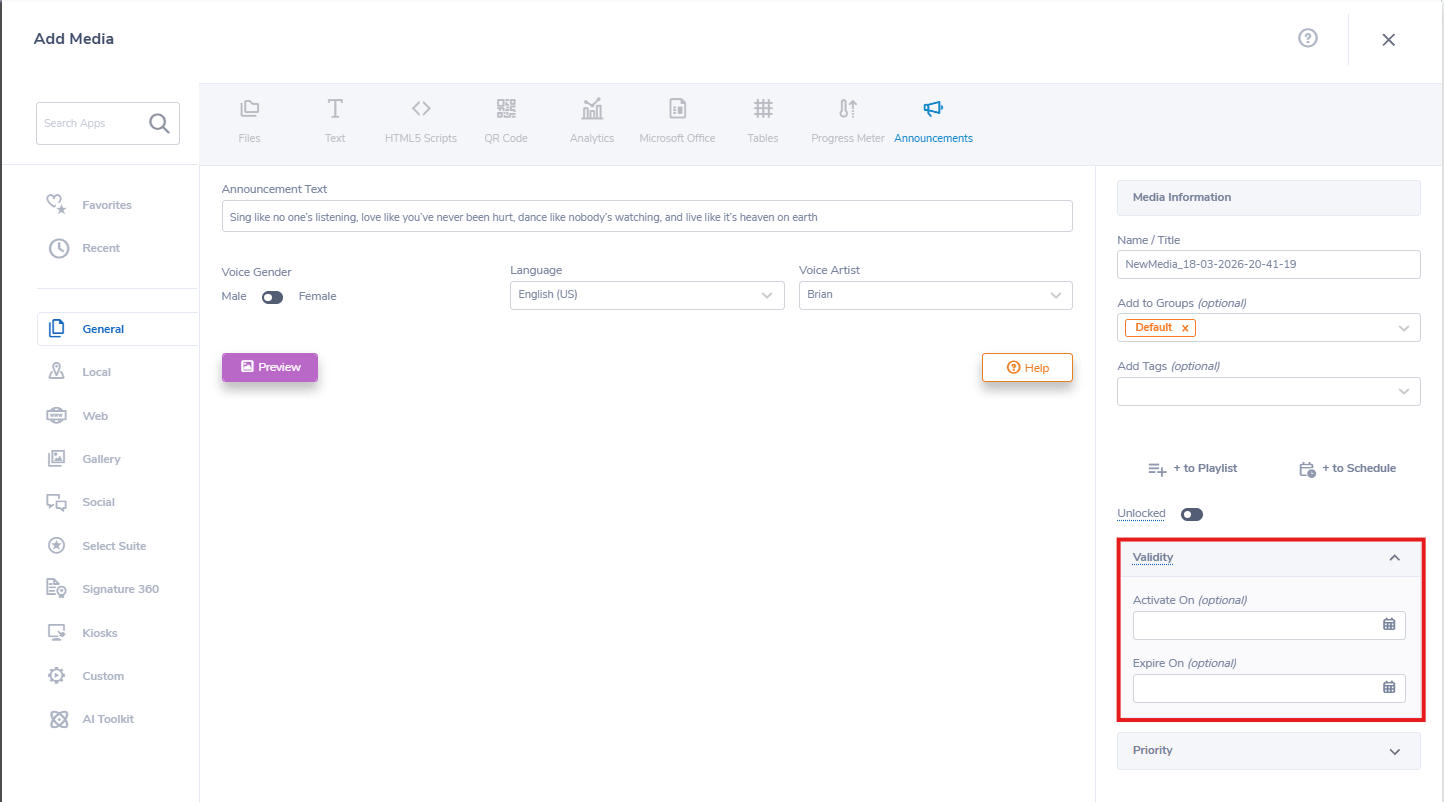
- Choose Validity to schedule content.
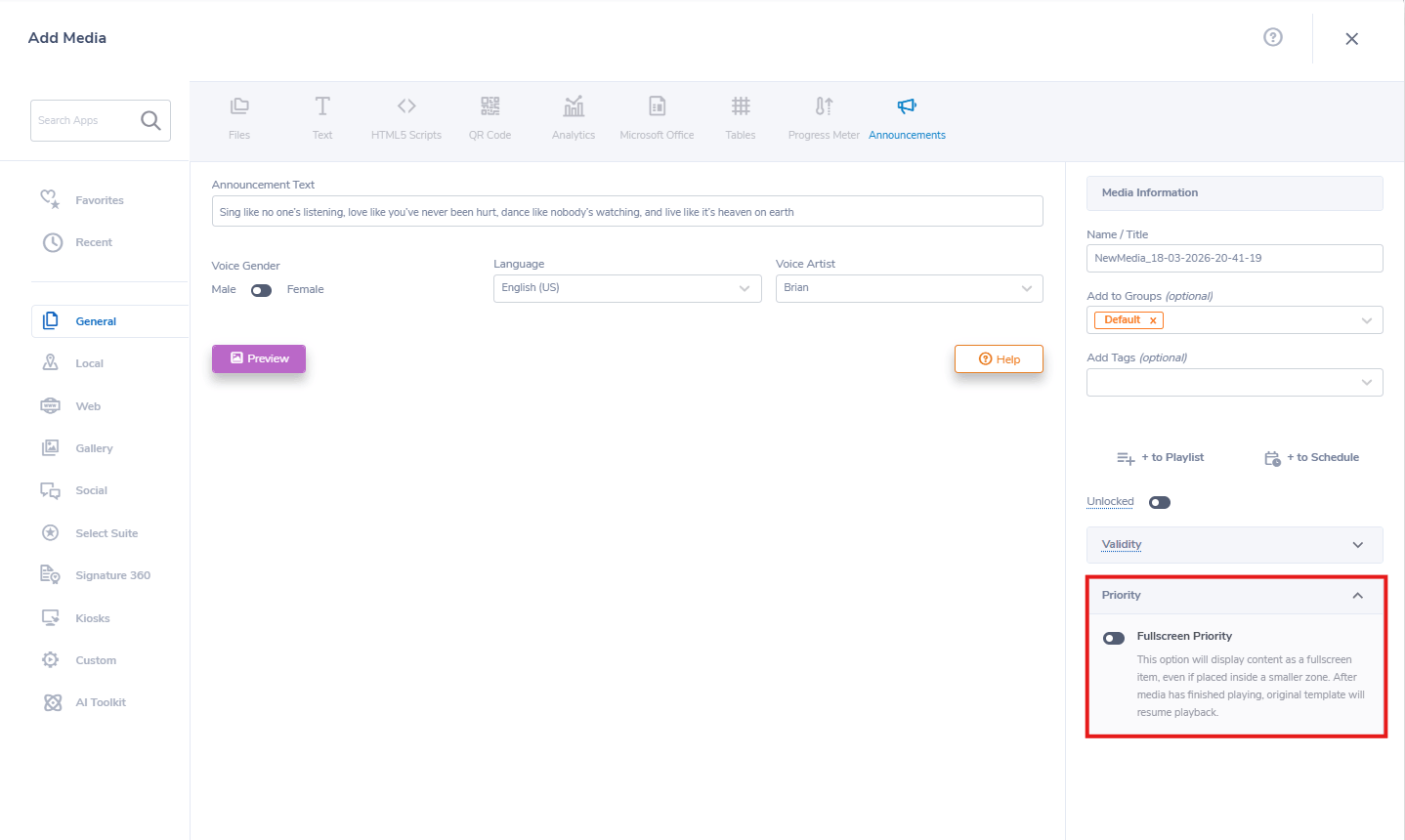
- Select Fullscreen Priority to display your content as a full-screen item.
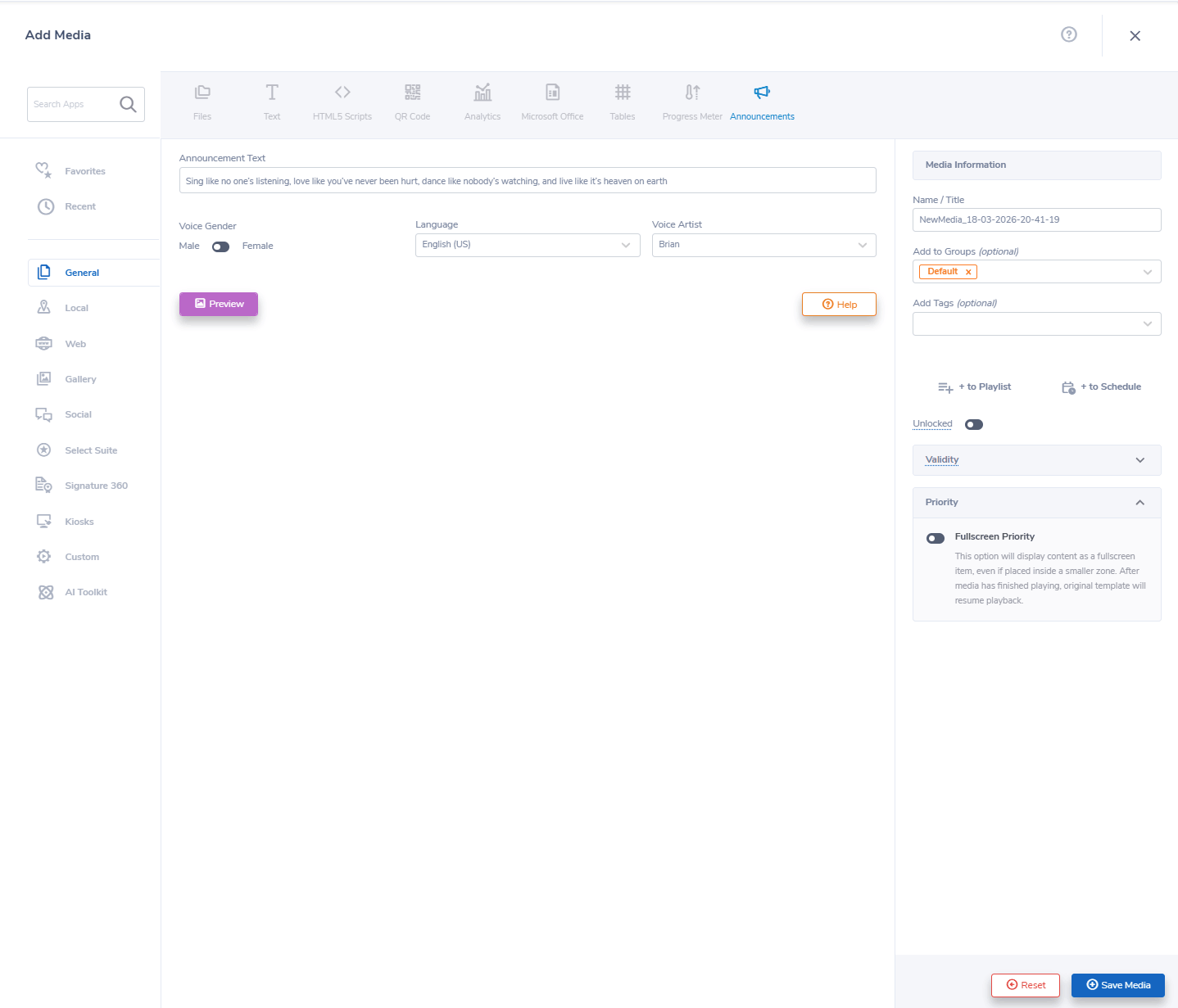
- Lastly, click “SAVE”.