How do I use Canva in Mvix CMS?
In this article, you will learn how to use our Canva feature in our cloud-based digital signage software, Mvix CMS.
Canva is a free-to-use online graphic design tool that allows users to make a plethora of designs such as social media posts, presentations, posters, videos, marketing materials, and more.
With this feature on digital signage, you can import pre-created media via the Design Tool.

According to Insider, Canva has more than 50,000 templates to choose from, which are completely customizable to your needs. There are numerous different graphics that can be made for different holidays, company events, presentations for meetings, marketing materials, and more.
There are a plethora of markets that can utilize Canva to create designs for their digital signage:
- Educational Institutions: Create engaging presentations for your students instead of talking through your lesson plans, customize each welcome board with Canva templates detailing your school colors, or displays captivating graphics on your menu boards so students can see what's on their lunch menu.
- Healthcare Facilities: Create marketing materials for your office, including logos, business plans, important documents, and more, which can be displayed on your signage.
- Corporate Offices: Design business cards for your office to place on digital signage featuring your employees, or design posters reminding employees of office events.
- Restaurants: Create Flyers for restaurant events like opening, menu tasting, and more.
- Retail: Create captivating templates of style inspirations, upcoming sales, and employee highlights.
- Worship Venues: Create templates of hymns and worship song lyrics to display on your digital signage during worship service.
What You’ll Need:
- A Digital Signage player
- Mvix CMS software with a supported feature package
- Internet Access
- A Canva account to link to the CMS
Getting Started
- From the Mvix CMS dashboard, (1) hover over the "Media" module and select "Add Media".
- The below module will appear. You can either search for Canva in the top-left or (2) find the app under the "Gallery" group.
- Please Note: We will be (3) sunsetting the "Legacy" design shortly. We recommend proceeding with "Modern" for all new Canva setups.
- To begin, you'll need to connect your Canva Account to Mvix CMS by (4) clicking "Connect to Canva"
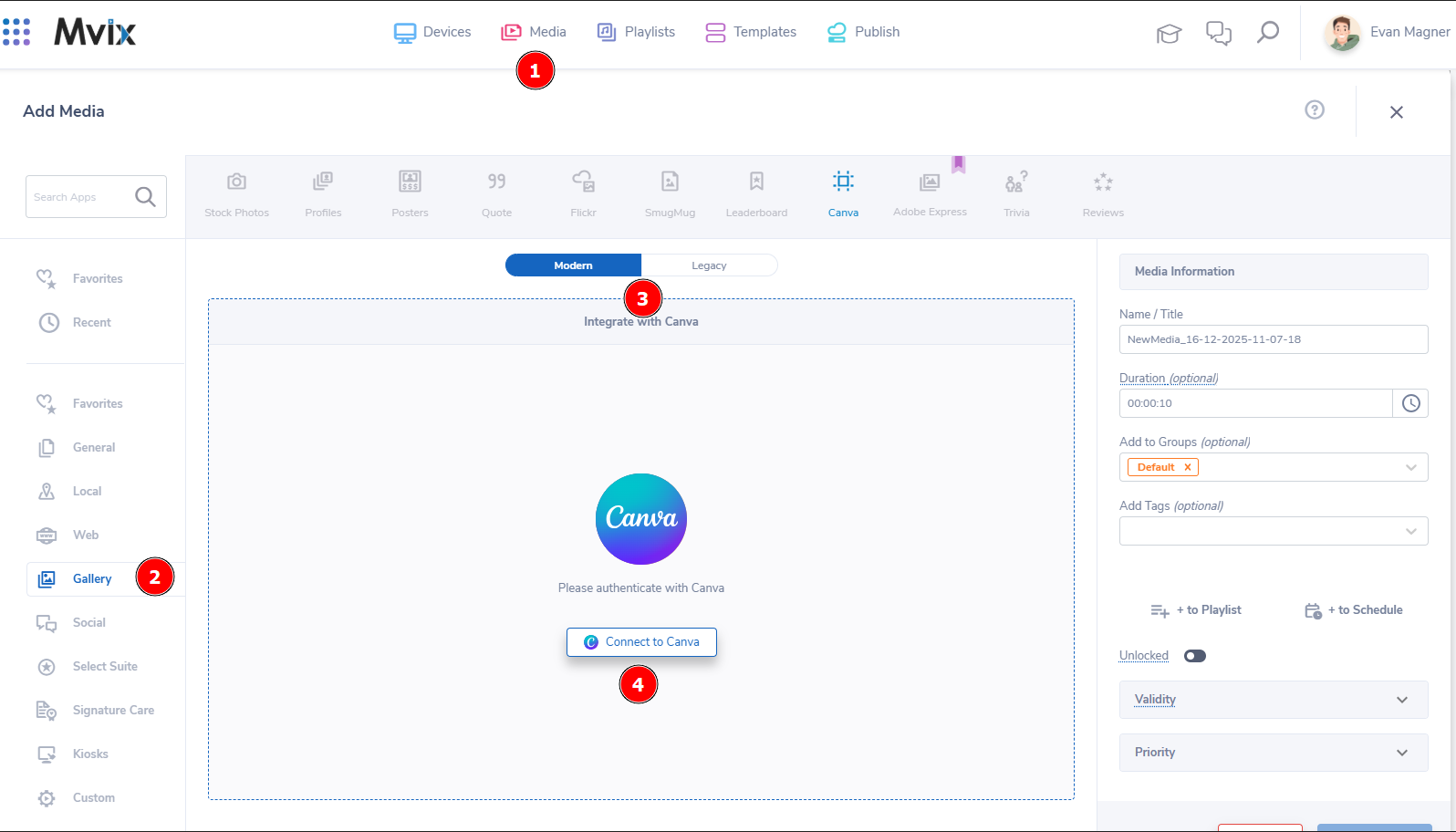
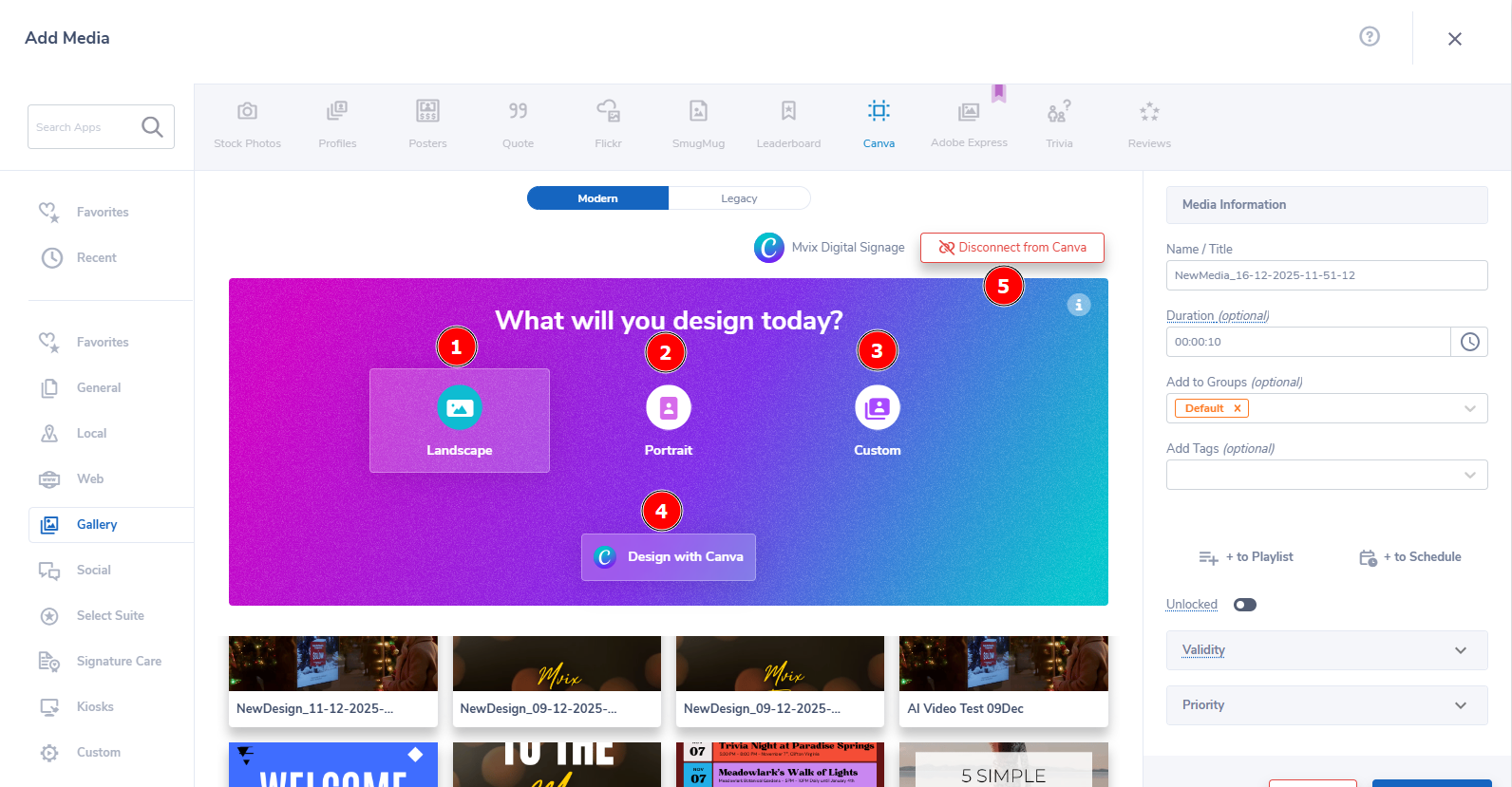
- Once your account is connected, you'll see the below setup.
Creating New Designs
- First, click one of the three sizing options. These are:
- (1) Landscape: 16:9 (Long Images)
- (2) Portrait: 9:16 (Tall images)
- (3) Custom: Set a width & height in pixels
- Then, (4) click "Design With Canva". This will open up the Canva Editor.
- If you need to disconnect your Canva account, you can (5) click "Disconnect From Canva" at the top-right.
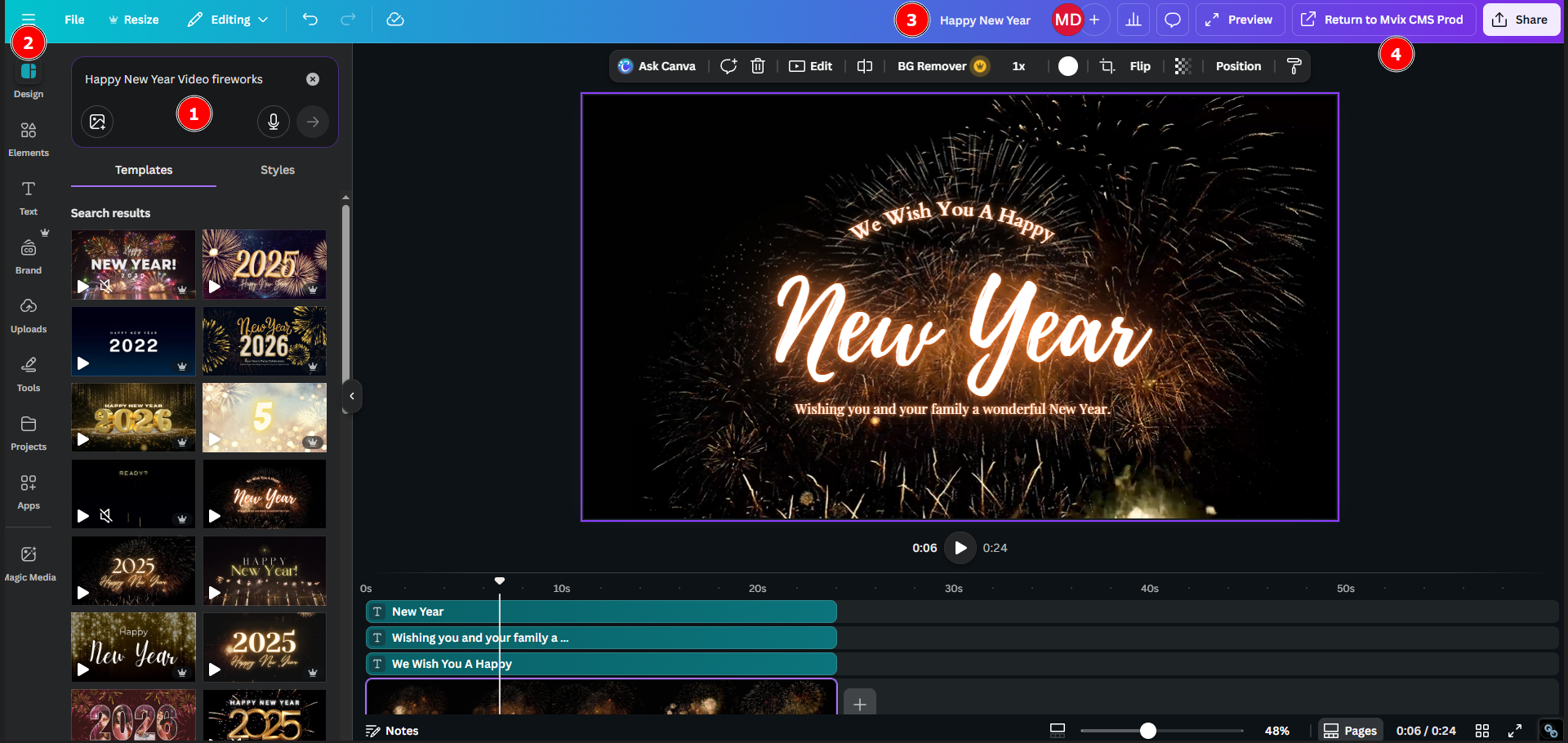
- Some important highlights for using Canva are:
- Be sure to (1) use the search box at the top-left. This allows you to find professionally designed pre-made templates that you'll just need to edit.
- You can also add & edit through (2) their modules. These include:
- Elements: Add elements such as shapes, stickers, and graphics
- Text: Add headers, subheaders, & body text to your template
- Brand: Utilize your pre-made brand colors, logos, fonts, etc.
- Uploads: Upload images or videos and add them to your template
- Tools: Draw, add shapes, lines, text, etc.
- Projects: Choose and edit old designs you have created in your Canva account
- Apps: Utilize custom-built apps such as AI tools, charts, audio, etc.
- Magic Media: Canva's AI creation tool
- Once your design is ready, (3) change the name then (4) click "Return to Mvix CMS Prod" to go back to the digital signage CMS.
Editing Your Pre-Made Designs
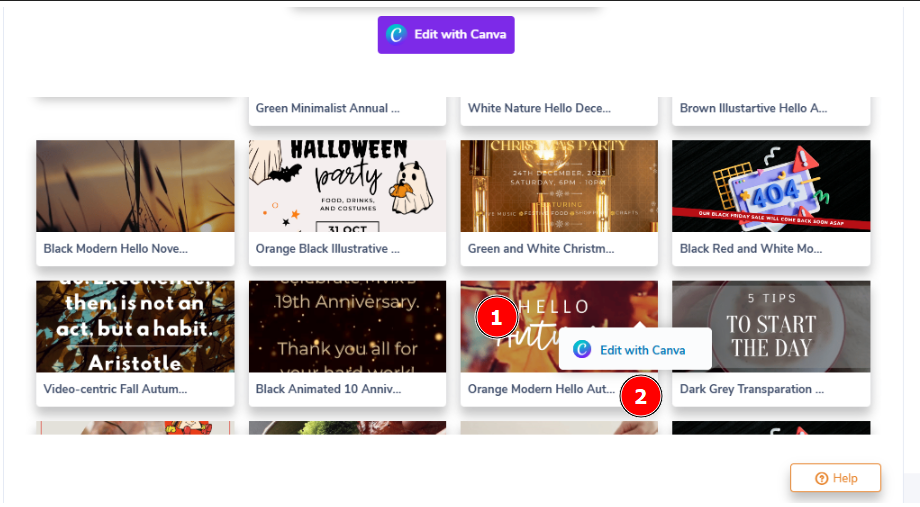
- Your already created designs will populate below the editor selector. To edit a specific design, hover your mouse over the design, click the three dots at the top right, and select "Edit with Canva".
- This will open up the designer shown in the previous section and can be edited from there.
Saving Designs To Your Media Library
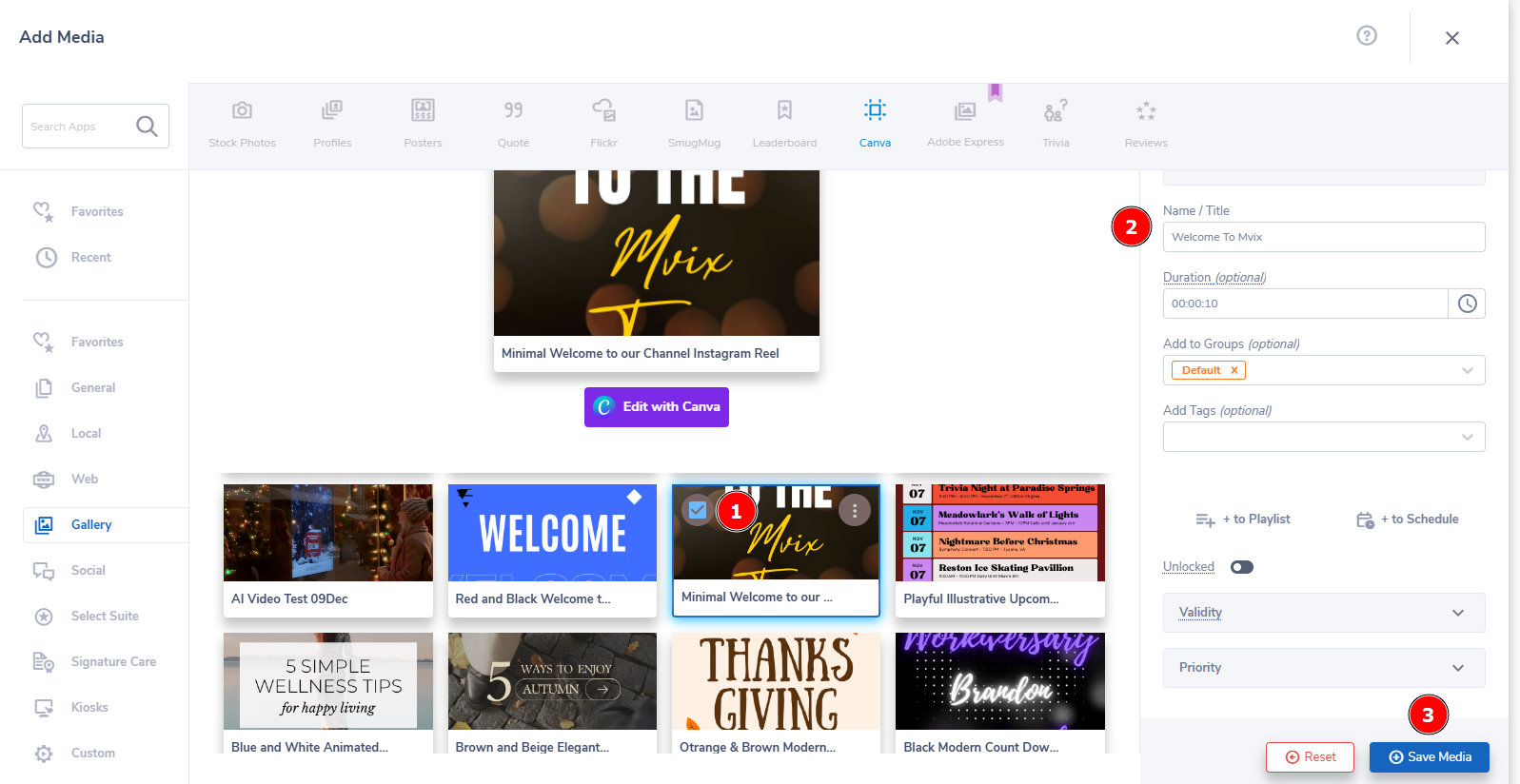
- First, (1) click the design you would like to add to your digital signage.
- Then, we recommend to (2) name it something that will be easy to reference within your media library.
- Lastly, (3) click "Save Media" and the design will be ready to use on your displays.
Digital Signage Forever
Designed for enterprise-digital signage deployments, our Signage 360 plan offers a lifetime warranty, free digital signage players every 3 years, accelerated issue resolution, and premium content. Intended to enable high system uptime, operational efficiency, and continuous business innovation, the plan ensures proactive upkeep of the signage network. Learn more about Mvix Signature 360.