How can I change UI modes in Mvix CMS?
The Mvix CMS allows you to choose from three UI modes to best fit your user experience. The available modes are:
- Light Mode (For viewing in bright rooms during the day)
- Dark Mode (Mutes brighter parts of the web pages to help reduce discomfort)
- Auto (Auto-selects the mode depending on the time of day)
Tip: Test both modes. This is the best way to find which style best helps you reduce eye-strain from long periods of screen-viewing.
What You’ll Need:
- Mvix CMS Software with a supported feature package
- Internet Connectivity
Changing UI modes
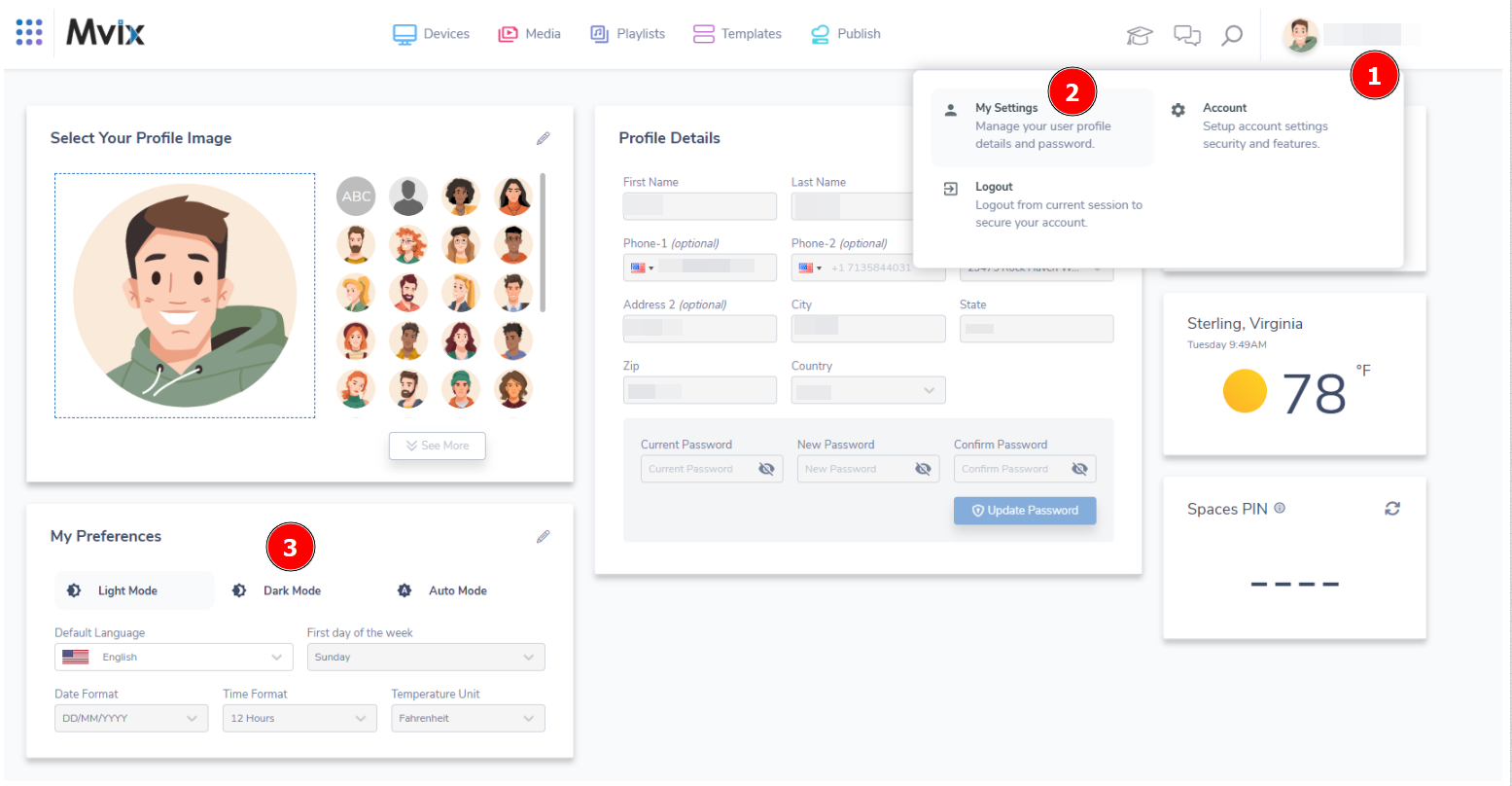
- From the Mvix CMS (1) hover over your account name at the top-right and (2) select "My Settings".
- At the bottom left of the Settings Screen, there is a box called "My Preferences". This has three options:
- Light Mode - Can be easier to read but can cause eye strain in low-light conditions
- Dark Mode - Gentler on the eyes in dark environments but can cause eye strain in bright settings
- Auto Mode - Changes between light & dark mode depending upon the time of the day.