Change Your Device Orientation in Mvix CMS
Depending on your use case, your displays may have a greater impact in either a vertical (portrait) or horizontal (landscape) orientation. Choosing the correct orientation ensures your content is presented clearly and effectively.
The Mvix CMS provides four orientation options, allowing you to match your device settings to your display setup so media appears properly aligned. In this knowledgebase article, we will walk through the steps to change your device orientation in Mvix CMS and keep your content displaying correctly.
What You'll Need:
- A compatible digital signage player e.g. Mvix, BrightSign, etc.
- Mvix CMS Software with a supported feature package
- Internet Connectivity
If you meet the requirements listed above, simply follow the steps below:
Video Tutorial
How to Change Device Orientation
- 1. Hover over the “Devices” tab
- 2. Click on "Device Library"

- 2. When you are are in the device library, hover over the relevant player then click the gear icon
- 3. Then select "Edit"
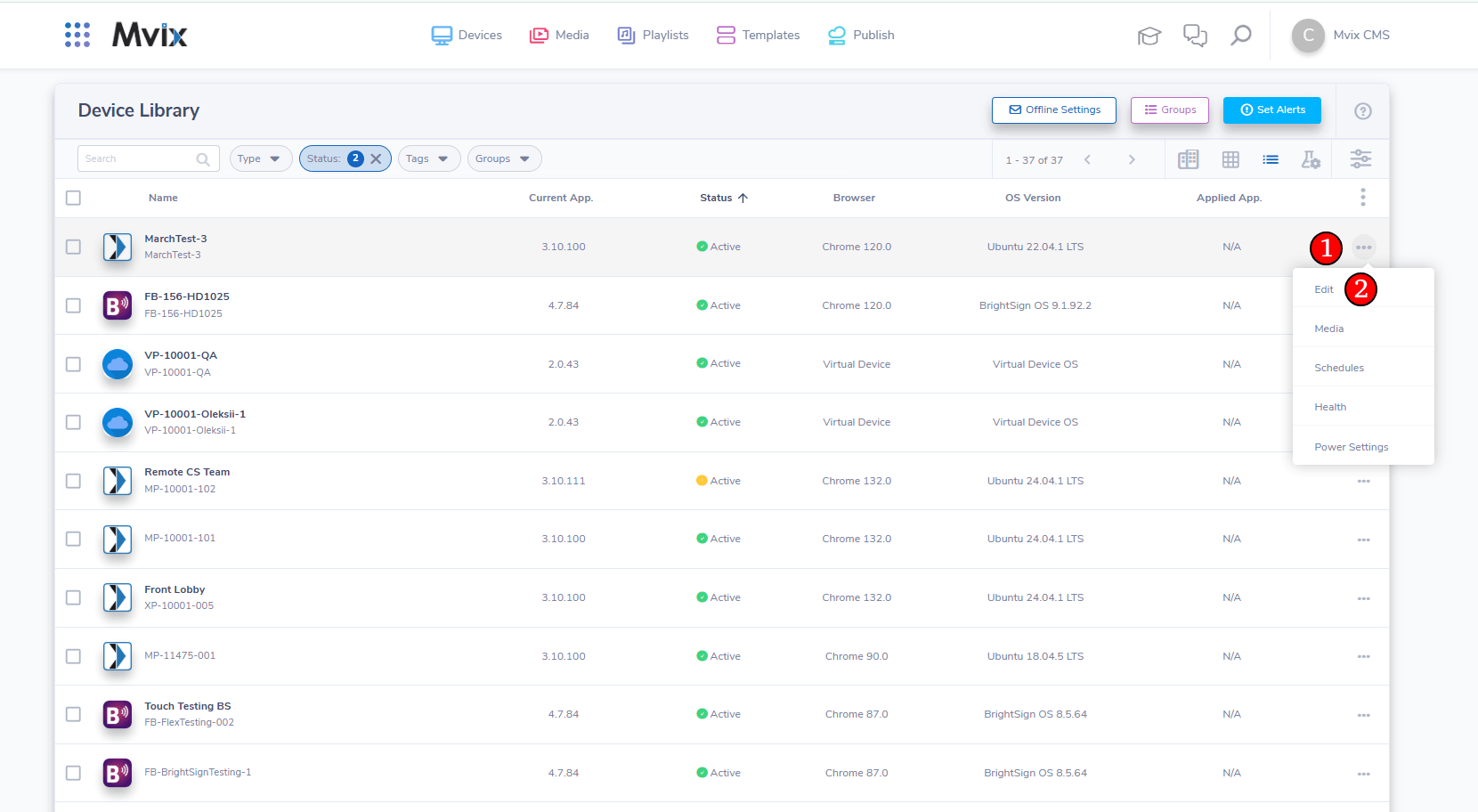
- This will bring you to the "Edit Device" Screen
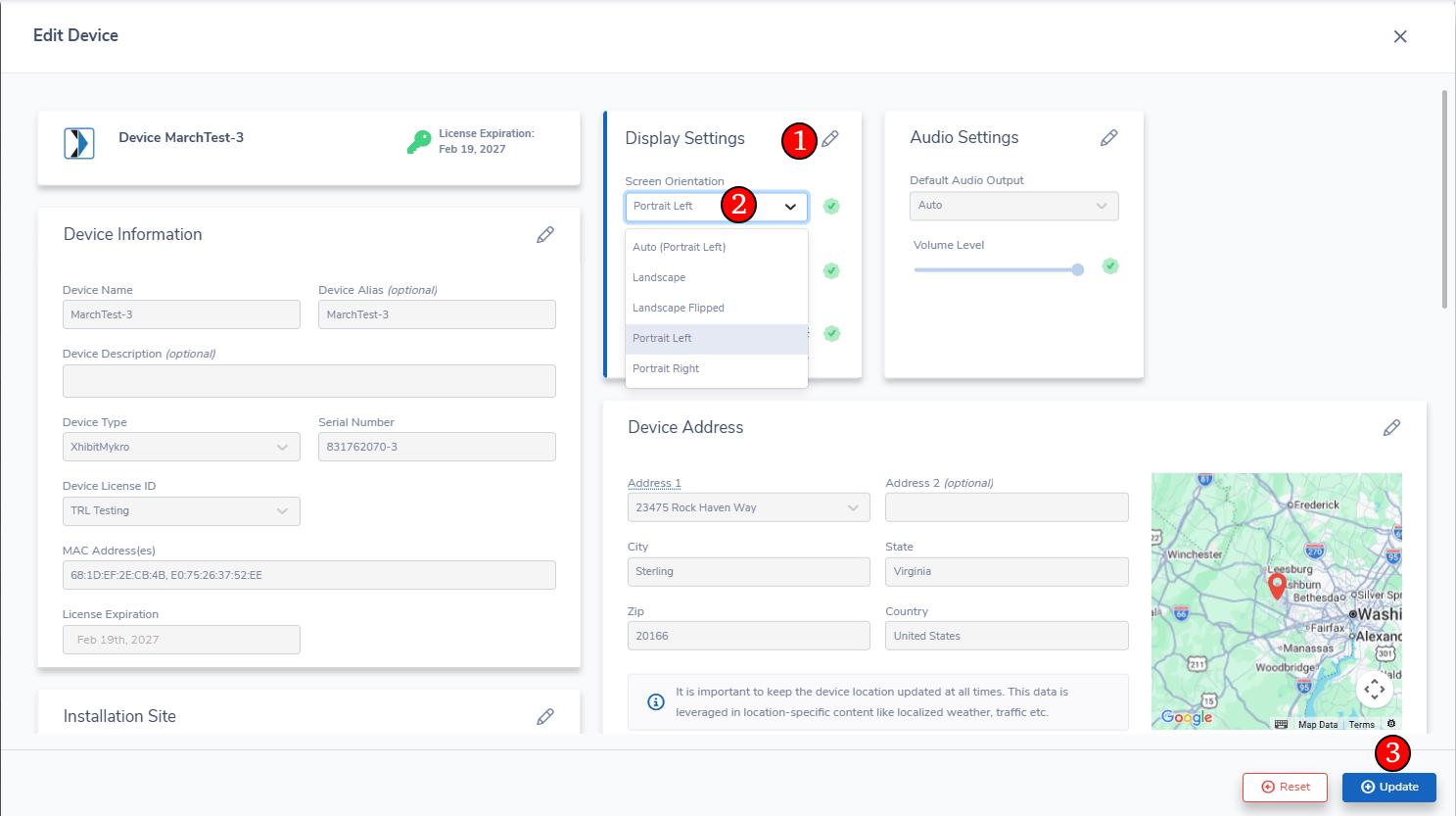
- 1. Click the pencil icon to start editing the Device Configuration
- 2. Select the drop down menu for "Screen Orientation". This will let you choose 4 options:
- Clockwise (Portrait/Vertical)
- Counterclockwise (Reversed Portrait)
- Landscape (Horizontal)
- Landscape Inverted (Reversed Landscape)
- 3. Once you have chosen a new "Screen Orientation", Click "Update" to change your screen orientation.
Once you finish updating the device, your display will automatically configure your display to the chosen orientation.