
How Does Priority Media Work?
The Priority Media feature lets you display a specific piece of media in full screen, overriding any other content currently playing. This ensures the selected media takes precedence over all other scheduled content during that time. In other words, any media set as priority will replace other media assigned to the same time slot.
What You’ll Need:
- Mvix CMS Software with a supported feature package
- Internet Connectivity
If you meet the requirements listed above, simply follow the steps below to learn how to use priority media.
Using Priority Media
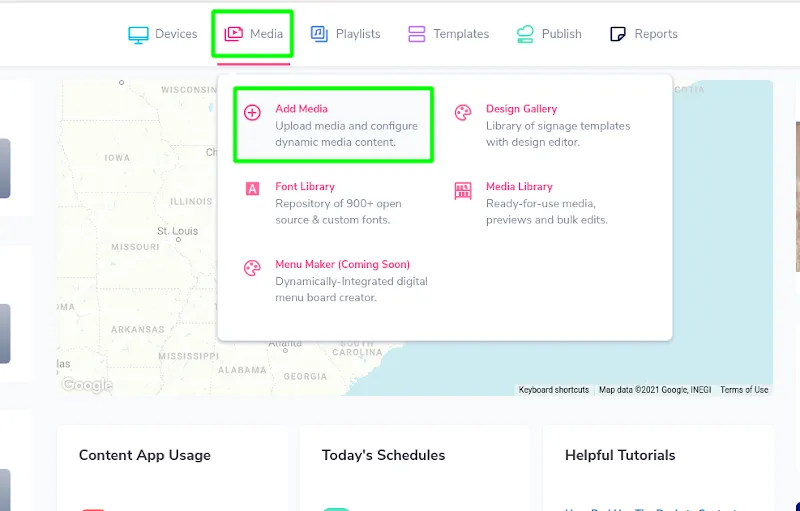
- Hover over the “MEDIA” tab, and select the “MEDIA FILE”.

- Click on the “EDIT” button.

- Click the “Priority” tab. When assigning the "Fullscreen" Priority toggle, any assigned media will always display "Fullscreen".
- The priority content expand and compress each time after appearing in one of the template's zones.
- Related content will be covered with the priority contents and continue playing in the background.
- Related content will be displayed on the screen and continue playing in the foreground after completing the priority contents playback.
- Click “SAVE”.