
How do I Display the Weather in Mvix CMS?
The Weather feature allows you to display weather information on your digital signage screen. The Weather can be scheduled by itself, through a playlist, or template as a zone.
What You’ll Need:
- A compatible digital signage player e.g. Mvix, BrightSign, etc.
- Mvix CMS Software with a supported feature package
- Internet Connectivity
If you meet the requirements listed above, simply follow the steps below to display the weather.
Using the Weather
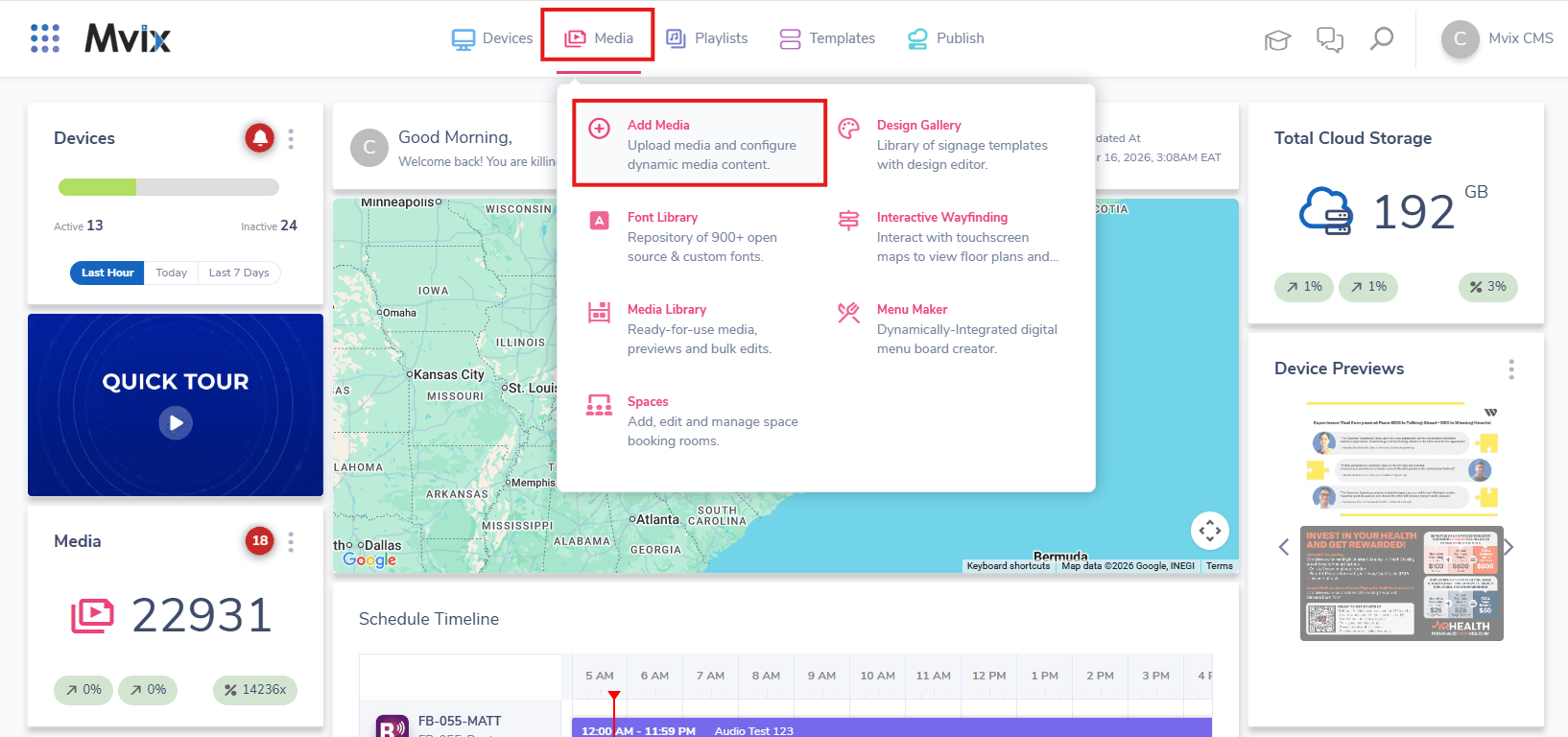
- Hover over the “MEDIA” tab and click “ADD MEDIA”.
- Click on the “LOCAL” category.
- Click the “WEATHER” app.
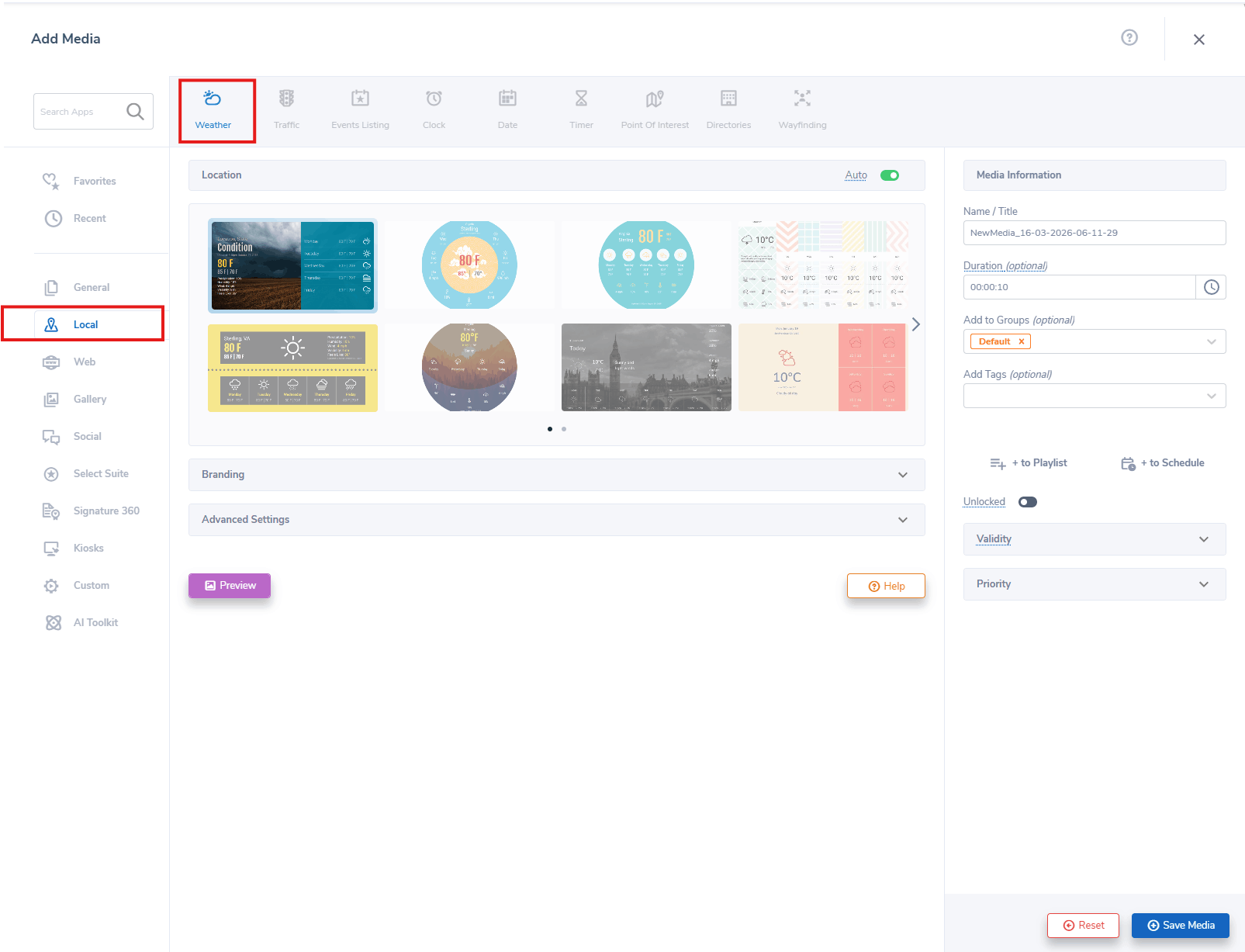
- Leave the location on auto, or type in the city you want the weather to be shown for.
- Choose a theme from either Modern or Legacy Themes.
- Note: Legacy Themes are no longer being developed, and will not automatically adjust to your screen size as the modern themes will.
- Select the Temperature measure (Celsius or Fahrenheit), the font information, and the last updated time.
- Choose the different elements you want to be shown such as Humidity, Precipitation, Wind, Pressure, and Visibility.
- Click the preview button at the bottom of the screen so that you can see what the Weather app will look like.
- Name your weather content app and click “SAVE”.
Digital Signage Forever
Designed for enterprise-digital signage deployments, our Signage 360 plan offers a lifetime warranty, free digital signage players every 3 years, accelerated issue resolution, and premium content. Intended to enable high system uptime, operational efficiency, and continuous business innovation, the plan ensures proactive upkeep of the signage network. Learn more about Mvix Signature 360.